
Home > Mega888 PC
Mega888 PC Download Guide - Mega888Client.com
Step 1: Download the APK File (Required for Emulator)
Download Mega888 APKStep 2: Get an Emulator (Nox or LDPlayer)
Open NoxPlayer WebsiteCheck the emulator provider's current operating-system requirements before installing
General Emulator Requirements
| Operating System | A version supported by your chosen emulator |
|---|---|
| Processor | Hardware virtualization support is helpful |
| Memory | Enough RAM for the emulator and other open apps |
| Storage | Space for the emulator, Android image and APK |
| Emulator Tool | NoxPlayer / LDPlayer / Bluestacks |
Avoid Unofficial Mega888.exe Files
Some websites advertise a direct Mega888.exe installer. Mega888Client.com does not provide or recommend a native Windows executable. Treat third-party EXE files as unverified and do not run one simply because it uses the Mega888 name or logo.
The route covered here is the Android APK running inside a known Android emulator downloaded from the emulator provider's own website.
How to Set Up Mega888 on PC Safely
Setting this up usually takes a few minutes. A larger screen and stable connection can make the app easier to use, but set a session limit before playing because computer sessions can last longer than expected.
Step 1: Get a Known Emulator
Many players use NoxPlayer, BlueStacks, or LDPlayer because they are familiar Android emulator options. Download any emulator only from its official website, install it, and keep normal device security enabled.
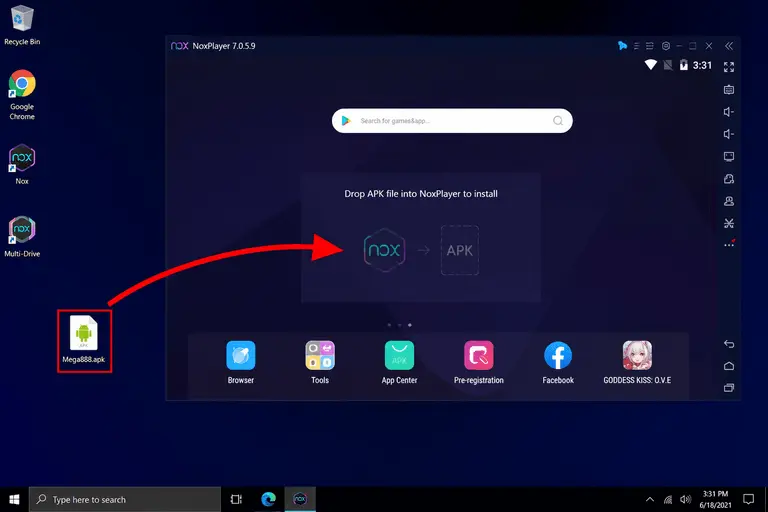
Step 2: Install the Mega888 APK
- Use the green button at the top of this page to save the Mega888 APK to your computer.
- Open NoxPlayer and wait until you see the Android home screen.
- Drag the APK file from your computer into the NoxPlayer window.
- Wait for the emulator to finish installing it, then open the Mega888 icon from the Android home screen.
Why Some Players Use Emulators
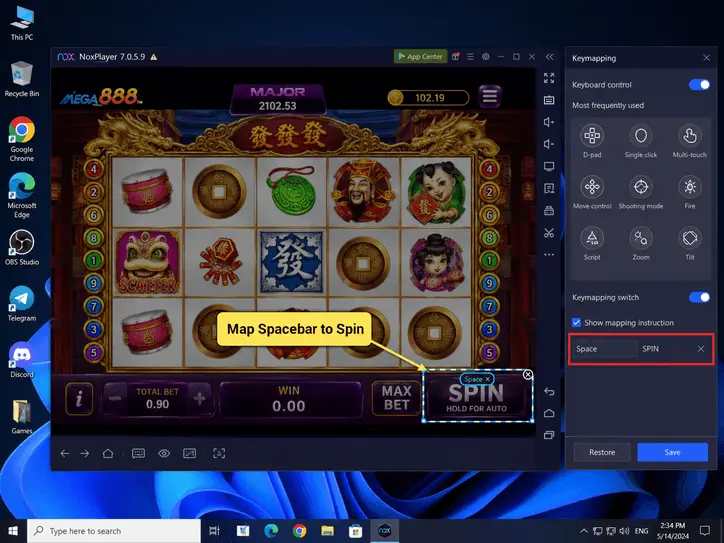
Keyboard Mapping
On many emulators, you can use a Keystroke Mapping Tool to assign taps to keyboard keys. Use this for comfort and accessibility, not to automate play or chase losses.
Multi-Instance Mode
Some emulators include a "Multi-Instance Manager". Use it carefully. Multiple sessions can increase distraction and spending speed, so set a clear limit before you play.
Troubleshooting Emulator Issues
"NoxPlayer is stuck at 99% Loading!"
This is a common PC issue. It may mean your computer's Hardware Virtualization (VT) is turned off. Restart your PC, enter the BIOS settings (usually by pressing F2 or Delete), find "Virtualization Technology" (or Intel VT-x / AMD-V), and set it to Enabled. This usually makes Android emulators load more smoothly.
Account Already Active on Another Device
If the login appears to remain active on your phone, log out there and close the app before trying the emulator. If the same message remains, use the Mega888 login guide or contact the route that manages your ID.
Need Help Setting Up?
If you are stuck at "99% Loading" on the emulator, you may need to enable "VT" (Virtualization) in your BIOS.