Home > Mega888 iOS
Mega888 iOS Download & Trust Fix - Mega888Client.com

iOS Setup at a Glance
| App Name | Mega888 iOS |
|---|---|
| Devices | iPhone and iPad |
| Install Method | Browser download and profile approval |
| Main Setting | VPN & Device Management |
| Common Issue | Untrusted Enterprise Developer |
Install Mega888 on iPhone
Mega888 is commonly installed on iPhone outside the public App Store. iOS may therefore ask you to approve an enterprise developer profile before the app opens. Continue only when the app name, profile and download source match what you intended to install.
Step 1: Download the iOS Profile
Tap the download button above. Safari may ask whether you want to download a configuration profile. Tap Allow, then wait for the app icon or install prompt to appear.
If the download freezes, switch between WiFi and mobile data, then try again. Some networks handle enterprise-app downloads differently.
Step 2: Fixing the "Untrusted Developer" Error
If the app is on your screen but shows "Untrusted Enterprise Developer", the install is not necessarily broken. Apple is asking you to manually approve the developer profile. Here is the usual path:
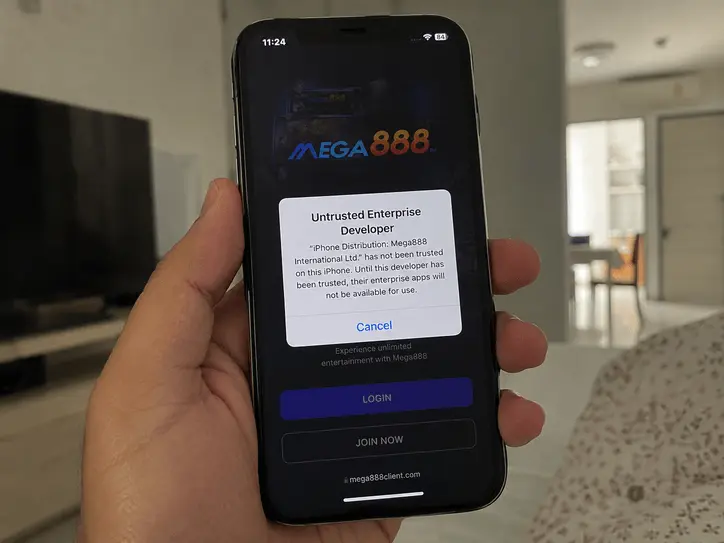
- Open your iPhone's Settings app.
- Scroll down and tap on General.
- Look for VPN & Device Management (older iOS might say "Profiles & Device Management").
- Under "Enterprise App", select the profile associated with the app you just installed.
- Tap the blue text that says "Trust [Company Name]" and hit Trust again to confirm.
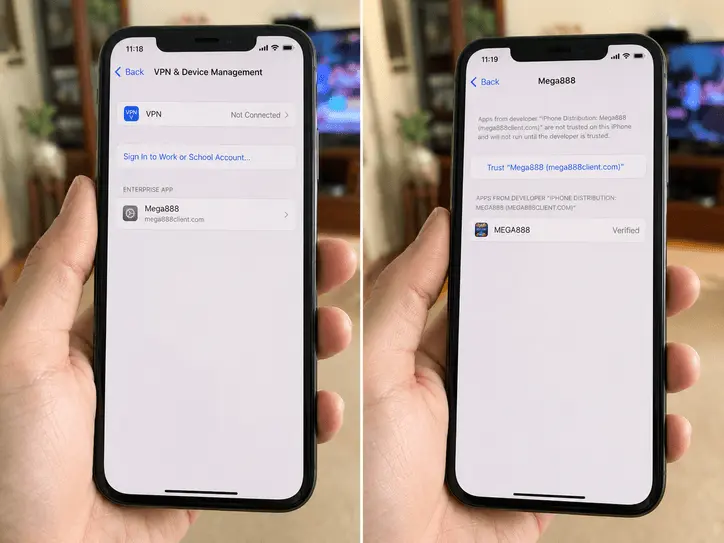
Return to your home screen and open the Mega888 icon again. If it still fails, restart the phone and repeat the profile check.
iOS Troubleshooting
Developer Mode Message
Do not enable Developer Mode as a routine installation step. If iOS specifically displays that message, confirm the app source and ask support why the setting is required before changing it. Developer Mode reduces some normal protections and is intended for app testing.
The Game Opens to a White Screen and Crashes
A white screen can follow an incomplete install, a changed profile or a network problem. Close the app, restart the phone and test the connection. If it still fails, remove the app and repeat the installation from the current route.
"Unable to Install" Error During Download
First check storage, the network connection and whether Safari completed the download.
- Make some free space if the device storage is nearly full.
- If the download remains stuck, restart the phone. Clearing Safari website data is a later option because it signs you out of websites.
Need a Test Account?
A shared Test ID can help you check whether the app opens and responds on your iPhone. Demo results do not predict real play.